 opaya
opayaCodex CLI Setup: A Practical Walkthrough
Install once, use everywhere.

Implementing a robust Codex CLI setup is essential for developers and operators who want to integrate OpenAI's natural language-to-code capabilities directly into their terminal environments. As engineering teams standardise on OpenAI Codex for automated refactoring, code generation, and infrastructure management, relying solely on web interfaces or graphical IDE extensions often becomes a bottleneck. A well-configured command-line interface allows you to execute complex tasks, automate routine server maintenance, and generate boilerplate code without ever leaving your terminal multiplexer. This guide provides a comprehensive, practical walkthrough for standardising your Codex CLI setup across local machines, remote servers, and containerised environments. By following these steps, you will ensure your AI agents possess the right repository context, adhere to strict security boundaries, and operate seamlessly across your entire distributed infrastructure.
Prerequisites for a Successful Setup
Before diving into the installation and configuration of the Codex CLI, ensure that your environment meets the necessary foundational requirements. Preparing your system correctly prevents authentication errors and path conflicts later in the process.
- System Access: You must have administrative or pseudo-root (
sudo) privileges on the target machines to install global binaries and modify system environment variables. - OpenAI API Key: A valid OpenAI API key provisioned for Codex access. It is highly recommended to generate a dedicated API key specifically for CLI usage, allowing you to revoke it independently if a specific machine is compromised.
- Version Control System: Git should be installed and configured. The Codex CLI relies heavily on Git metadata to understand repository boundaries and file changes.
- Networking: Unrestricted outbound HTTPS access (port 443) to OpenAI's API endpoints. If you are operating behind a corporate proxy, ensure you have your proxy environment variables (
HTTP_PROXY,HTTPS_PROXY) correctly configured.
Step 1: Codex CLI Installation Paths by Operating System
A consistent installation strategy is the cornerstone of a predictable Codex CLI setup. Because developers and operators work across diverse platforms, establishing a standard installation path per operating system reduces friction when onboarding new team members or provisioning new remote environments.
macOS Homebrew Integration
For macOS users, leveraging Homebrew is the most standard and maintainable approach. Homebrew automatically handles the placement of the binary into the correct system path, typically /usr/local/bin on Intel Macs and /opt/homebrew/bin on Apple Silicon.
brew tap openai/codex-cli
brew install codex-cli
After installation, verify that the path is correctly registered by running which codex in your terminal. If the command is not found, ensure that your Homebrew bin directory is exported in your ~/.zshrc or ~/.bash_profile.
Linux Server Environments
On Linux environments—including Ubuntu, Debian, and CentOS—downloading the pre-compiled binary is the preferred method for server deployments, as it avoids unnecessary package manager dependencies. We recommend installing the binary to /usr/local/bin for global system access, or ~/.local/bin for user-isolated installations.
curl -LO "https://github.com/openai/codex-cli/releases/latest/download/codex-linux-amd64.tar.gz"
tar -xzf codex-linux-amd64.tar.gz
sudo mv codex /usr/local/bin/
sudo chmod +x /usr/local/bin/codex
For operators provisioning fleets of servers, incorporating these commands into your Ansible playbooks, Chef recipes, or Terraform cloud-init scripts ensures every instance comes pre-equipped with the CLI.
Windows PowerShell Configuration
For Windows developers, the CLI can be installed via PowerShell. It is best practice to place the executable in a dedicated directory, such as C:\Program Files\CodexCLI, and append this location to your system's PATH environment variable.
Invoke-WebRequest -Uri "https://github.com/openai/codex-cli/releases/latest/download/codex-windows-amd64.zip" -OutFile "codex.zip"
Expand-Archive -Path "codex.zip" -DestinationPath "C:\Program Files\CodexCLI"
[Environment]::SetEnvironmentVariable("Path", $env:Path + ";C:\Program Files\CodexCLI", [EnvironmentVariableTarget]::Machine)
Restart your PowerShell session to ensure the updated PATH variable is loaded correctly.
Step 2: Configuring Your Codex CLI Settings
Understanding where configuration lives and how it is prioritized is crucial for managing AI agents across different projects. The Codex CLI uses a hierarchical configuration system, allowing operators to set global defaults while giving developers the flexibility to override settings on a per-repository basis.
The global configuration file is traditionally located at ~/.config/codex/config.toml on Unix-like systems, and %APPDATA%\Codex\config.toml on Windows. This file dictates your default model parameters, network timeout settings, and global output formats.
[auth]
# It is recommended to use environment variables for keys, but it can be set here.
# api_key = "sk-..."

[agent]
default_model = "code-davinci-002"
temperature = 0.2
max_tokens = 2048

[system]
timeout_seconds = 30
output_format = "markdown"
For project-specific settings, you can place a .codexrc file in the root of your repository. The CLI will merge these settings, prioritizing the local repository config over the global defaults. This is particularly useful when working on a legacy codebase that might require a higher token limit or a specialized system prompt compared to your standard greenfield projects.
Security Note: Never hardcode your API key into a project-level configuration file that might be committed to version control. Always rely on the CODEX_API_KEY environment variable to supply credentials securely.
Step 3: Security, Approvals, and Sandbox Defaults
When giving AI agents the ability to interact with your local file system or remote server shell, security is paramount. According to the official documentation available at developers.openai.com/codex, the Codex CLI enforces a strict security posture by default through its interactive approval and sandbox mechanisms.
By default, the CLI operates in a restricted sandbox mode. When you prompt the agent to perform a task that requires executing a shell command (e.g., "install the missing python dependencies") or modifying a file (e.g., "refactor this function to use async/await"), the CLI halts execution. It parses the intended action, presents the generated code or command to the terminal window, and requires a definitive y/n confirmation from the user.
This sandboxed execution model ensures that potentially destructive commands—such as recursive deletions or unauthorised external network requests—are intercepted by the human operator. While this manual approval step adds a slight pause to your workflow, the official documentation strongly advises against disabling it for interactive terminal sessions.
If you are integrating the Codex CLI into a headless Continuous Integration (CI) pipeline or an automated remote job where human intervention is impossible, you can bypass these interactive prompts by passing the --auto-approve flag. However, doing so requires a careful tradeoff. When overriding the sandbox defaults, you should strictly limit the system permissions of the user executing the CLI and confine the operation to a safe, disposable directory.
Step 4: Providing Repository Context to the AI Agent
A frequent challenge when orchestrating a Codex CLI setup is ensuring the AI agent has sufficient context to generate accurate and relevant code. If you ask the CLI to "update the database schema," it cannot succeed unless it knows where your schema files are located and what ORM you are currently using.
Based on the architectural guidelines detailed at developers.openai.com/codex, the CLI employs a dynamic context-gathering mechanism. When executed within a Git repository, it scans the directory tree to understand the project structure. To prevent the agent from consuming its token limit by reading irrelevant files (like compiled binaries, build artifacts, or large datasets), the CLI natively respects your .gitignore file.
For more granular control, you can create a .codexignore file in the root of your project. This file functions identically to a standard gitignore file but applies exclusively to the agent's context window. You should explicitly exclude directories like node_modules/, venv/, and large documentation folders.
When you issue a command, you can explicitly feed context to the agent using the --context flag. For example:
codex "Refactor the authentication middleware" --context "./src/middleware/auth.ts" "./src/models/user.ts"This explicitly loads the specified files into the prompt window before querying the OpenAI API, ensuring the generated output aligns perfectly with your existing codebase architecture.
Step 5: Running the Codex CLI over SSH
Operators frequently manage remote environments where running a local graphical IDE is not feasible. Executing the Codex CLI over SSH allows you to leverage AI assistance directly on your staging servers, database clusters, or headless remote development environments.
To implement this, you must handle API authentication securely. Hardcoding your API key in a remote server's dotfiles is a significant security risk, especially in shared environments. Instead, use SSH environment forwarding to pass your local API key to the remote session.
First, modify your local SSH configuration (~/.ssh/config) to permit sending the environment variable:
Host staging-server
    HostName 192.168.1.50
    SendEnv CODEX_API_KEY
Next, configure the remote server's SSH daemon (/etc/ssh/sshd_config) to accept the variable:
AcceptEnv CODEX_API_KEYAfter restarting the SSH daemon on the remote server, you can connect. Your local terminal's API key will securely populate into the remote environment, allowing you to run the CLI on the server without ever storing the credential on disk. This approach provides a massive productivity boost for operators troubleshooting server configurations or writing custom bash scripts directly on remote infrastructure.
Step 6: Verifying Your Codex CLI Setup with a Test Task
Once your Codex CLI setup is complete, it is crucial to verify that the agent is properly authenticated, possesses directory context, and correctly triggers the interactive sandbox approval.
Navigate to a safe, temporary project directory. Create a poorly formatted Python script named process_data.py:
import json
def read_it(f):
  x = open(f)
  return json.load(x)
Run the following command to instruct the CLI to refactor the code for better safety and performance:
codex "Refactor process_data.py to use a context manager and include basic error handling for FileNotFoundError."If the setup is correct, the CLI should output a proposed change utilizing the with open() syntax and a try/except block. Crucially, it should pause and ask for your approval (Apply these changes? [y/N]) before writing to the file. Approve the change and inspect the file to ensure the execution was successful.
Verification Test Checklist
To ensure a production-ready setup across all your environments, validate the following items:
- Binary Availability: The
codex --versioncommand executes successfully from any directory, confirming correct PATH configuration. - Credential Isolation: The
CODEX_API_KEYis supplied via environment variables or secure SSH forwarding, not hardcoded in plain text files. - Sandbox Active: Issuing a destructive file-write command triggers the interactive
[y/N]approval prompt. - Context Filtering: Running the agent in a directory with a
.codexignorefile successfully ignores the specified heavy directories (verify by checking the prompt token usage output). - Remote Execution: The CLI operates correctly over an SSH session without throwing API authentication errors.
Edge Cases and Performance Tradeoffs
While the Codex CLI is a powerful tool, operators should be aware of several edge cases and inherent tradeoffs when deploying it at scale.
Context Window Limitations: Standardising on Codex means you are bound by the API's token limits. If you attempt to pass an entire monorepo into the context, the API will reject the request. You must actively manage your .codexignore and rely on targeted file inclusions rather than broad directory scans.
Network Latency over SSH: When running the CLI over a high-latency SSH connection, the interactive streaming of tokens can feel sluggish. If you experience terminal blocking, consider disabling the real-time token stream in your global configuration (stream_output = false) to wait for the complete response before rendering.
Proprietary Code Considerations: Passing source code to an external API requires careful consideration of data privacy policies. Ensure that the repositories you use the CLI against are cleared for third-party API processing, and utilize strict .codexignore rules for files containing sensitive proprietary algorithms or internal credentials.
Streamlining Your Codex CLI Setup with OPAYA
Managing a consistent Codex CLI setup across a fleet of local laptops, remote staging servers, and ephemeral Docker containers can quickly become a maintenance burden. While standardizing on configuration files, dotfiles, and SSH forwarding is a great starting point, operators who use several agent tools often require a more robust orchestration layer.
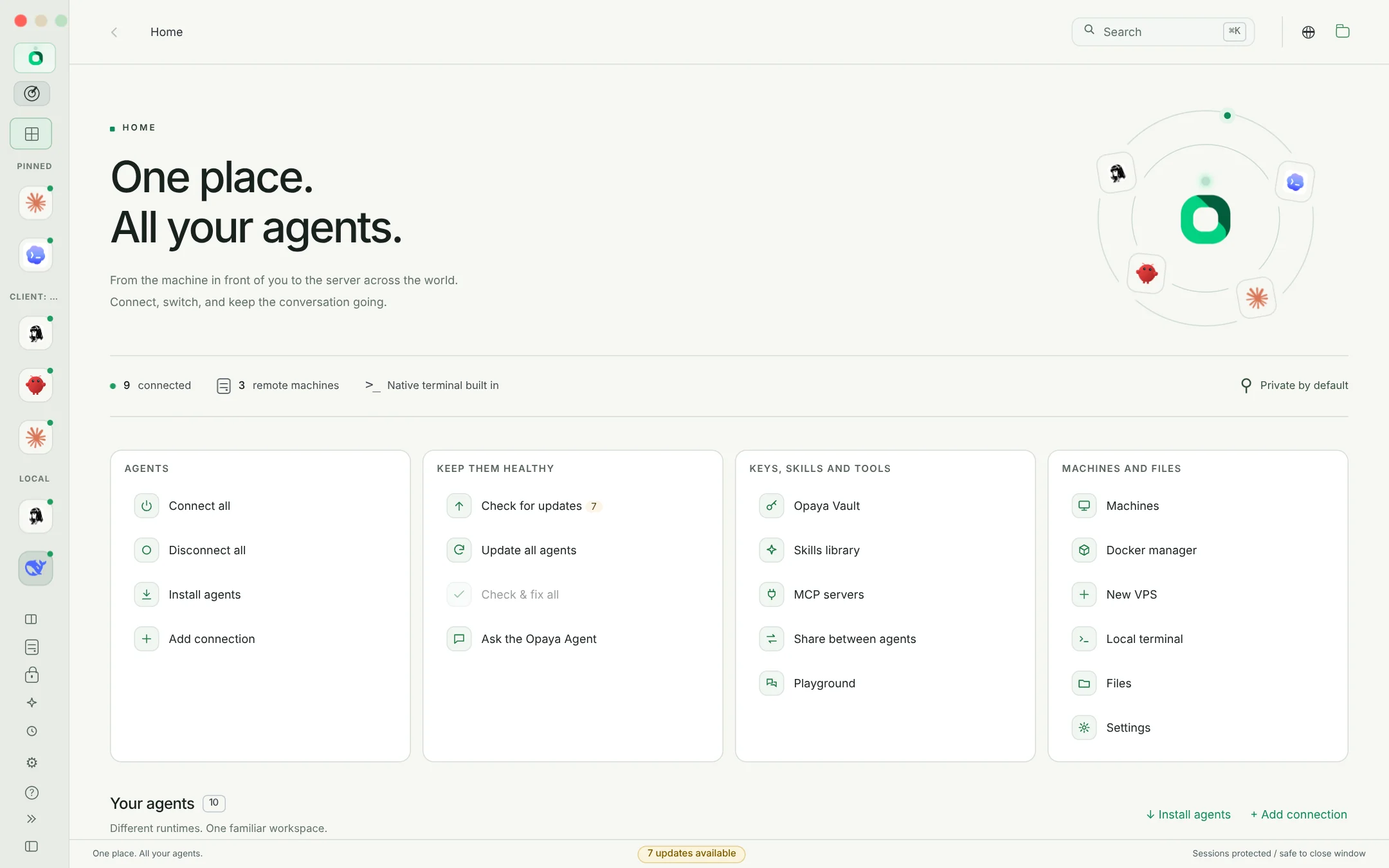
This is where OPAYA fundamentally changes the workflow. As a unified desktop workspace tailored for developers and operators, OPAYA simplifies the process of installing, connecting, and managing AI agents across your entire infrastructure. Rather than manually syncing .toml files or wrestling with SSH environment variables for each new environment, OPAYA allows you to deploy and monitor your agents locally, remotely, or within Docker containers from a single, intuitive interface. You can enforce approval defaults, manage context windows, and rotate API keys globally without ever touching a remote terminal.
To streamline your AI agent operations, eliminate configuration drift, and regain control over your remote environments, explore the full capabilities of the workspace at opaya.dev/features.
Frequently Asked Questions (FAQ)
Why does the CLI fail to find my local project files?
This usually occurs if the directory is missing a .git folder or if the files you are trying to access are explicitly excluded by your .gitignore or .codexignore configurations. Ensure you are executing the command from the root of the repository.
Can I use the Codex CLI without an internet connection?
No. The CLI acts as a conduit to the OpenAI API servers. It requires an active, stable outbound internet connection to transmit prompts and receive the generated code completions.
How do I switch between different OpenAI models?
You can override the default model specified in your configuration file by passing the --model flag at runtime. For example, codex --model gpt-4 "explain this function" allows you to dynamically switch to a more capable model for complex reasoning tasks.
Is it safe to use the --auto-approve flag in automated scripts?
It is generally safe only if the execution environment is strictly ephemeral and sandboxed (like a short-lived Docker container in a CI/CD pipeline). According to official guidelines, using automated approvals on a persistent local workstation or critical remote server is highly discouraged due to the risk of unintended system modifications.
How can I view the exact payload being sent to the OpenAI API?
You can append the --debug flag to any Codex CLI command. This will output the verbose logs, including the raw HTTP request, the compiled system prompt, and the exact files that were injected into the context window, allowing you to troubleshoot token limit issues.
Keep reading

How an AI Automation Agency Delivers an Agent to a Client
The delivery path that keeps client agent projects predictable, from discovery to a documented handover.
Read article →
The Agent Manager's Scoreboard: What to Track Across Every Machine
A short list of signals worth watching when agents run on several machines and for several people.
Read article →
The Vibe Coder's Stack: Every Agent in One Window
How solo builders keep Claude Code, Codex, Hermes and local models side by side without juggling windows.
Read article →