 opaya
opayaRun AI Agents Across Your Laptop and VPS: A Practical Setup Guide
Connect local and remote agent work in one place.
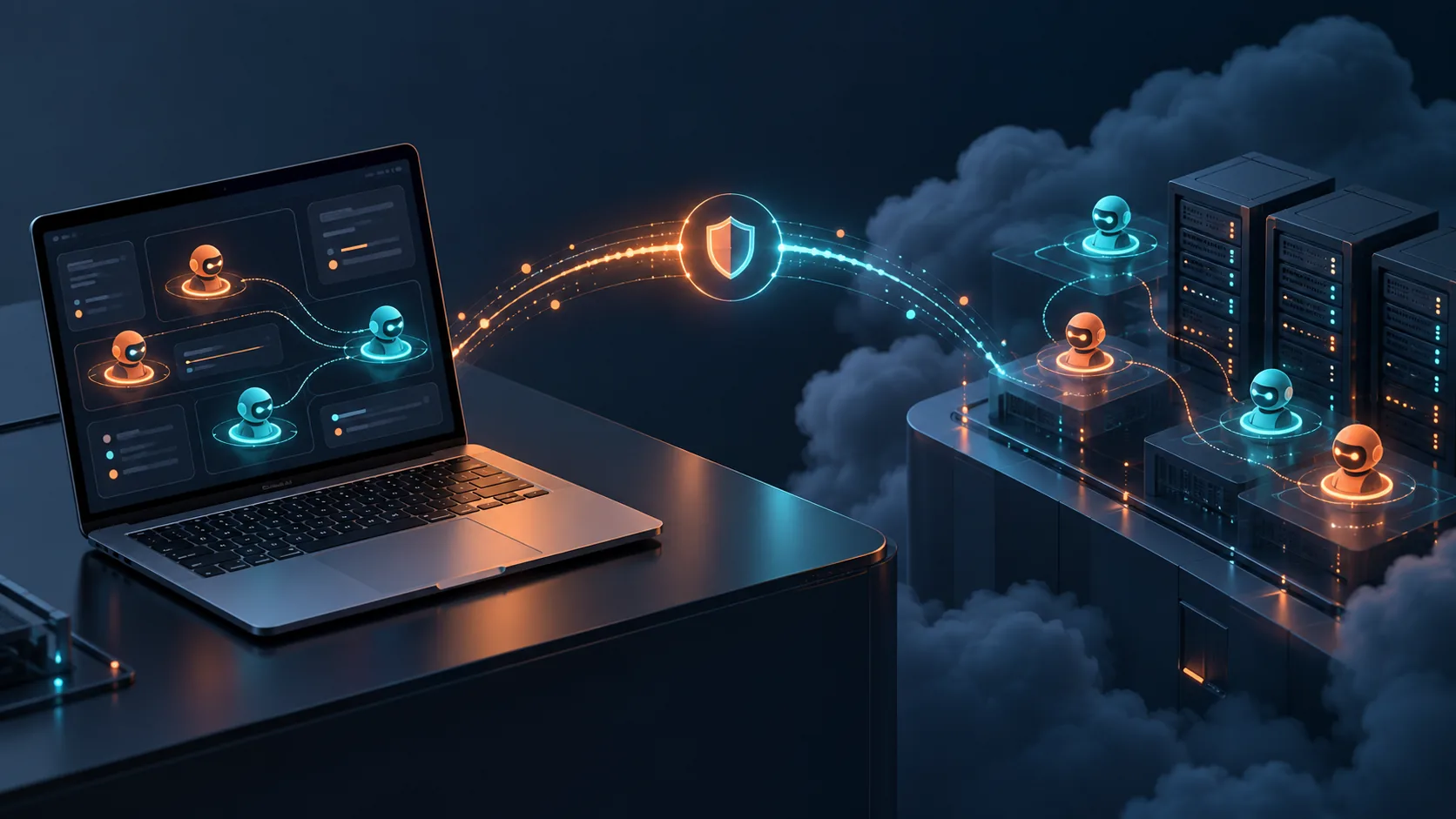
Managing AI agents across different environments has become a standard challenge for modern builders. You likely start on your laptop—prototyping, debugging, and testing prompt chains where latency is low and visibility is high. However, as your agents require more persistent uptime, heavier compute for local Large Language Models (LLMs), or background processing capabilities, moving them to a Virtual Private Server (VPS) becomes essential.
Bridging these two environments without creating a fragmented workflow is where many developers struggle. Managing a hybrid architecture for AI agents laptop VPS deployments often means dealing with disparate terminal windows, scattered API keys, and disconnected logs. This guide walks you through a practical, step-by-step setup to connect, manage, and run your AI agents across both your local machine and remote servers using OPAYA, keeping your workflow unified and secure.
The Hybrid Agent Architecture: Why Combine Laptop and VPS?
Before diving into the implementation steps, it is important to understand why running agents across both a laptop and a VPS is the preferred architecture for many operators.
Your local machine is ideal for rapid development. When you are writing custom Python scripts, testing LangChain flows, or tweaking system prompts, your laptop provides the immediate feedback loop necessary for efficient iteration. Local deployment also ensures that sensitive prototyping data never leaves your machine until you are ready.
Conversely, a VPS provides the infrastructure necessary for production-grade agent tasks. If an agent needs to scrape the web for 12 hours, listen to a continuous webhook stream, or run a memory-intensive open-weights model, your laptop is not the right host. A VPS offers 24/7 availability, high-bandwidth connections, and dedicated compute resources. By connecting these environments via OPAYA, you can develop locally and deploy remotely while managing everything from a single desktop control plane.
Prerequisites: Preparing Your Local and Remote Environments
Setting up your environments requires preparing both ends of the connection. Here is what you need to configure for both your laptop and your VPS before moving forward.
Local Requirements (Your Laptop)
- Operating System: macOS, Windows (via WSL2), or Linux.
- Core Runtimes: Node.js and Python installed and accessible in your system path.
- Docker Desktop: Required if you plan to containerize local agents or run database dependencies like Redis or ChromaDB locally.
- OPAYA Workspace: The OPAYA desktop application installed to act as your central command center.
- Network Access: Outbound SSH access (port 22) allowed by your local firewall to connect to your remote servers.
Remote Requirements (Your VPS)
- Operating System: A stable Linux distribution, preferably Ubuntu LTS or Debian.
- Hardware Minimums: At least 2 vCPUs and 4GB RAM for lightweight agents. If running local inference, 8GB+ RAM or a dedicated GPU is highly recommended.
- SSH Access: Root or sudo-user access with public key authentication enabled. Password authentication should be disabled to enforce security.
- Firewall Rules: Port 22 open for SSH. Any specific ports your agents use must be explicitly allowed if they need external web access.
- Docker Engine: Installed, running, and configured to start on boot.
Step 1: Configure SSH Connection and Host Verification
To manage remote agents from your local OPAYA workspace, establishing a secure, authenticated SSH connection is the first critical step. OPAYA leverages standard SSH protocols to execute commands, stream logs, and manage agent lifecycles on your VPS without requiring a proprietary agent installed on the remote server.
Follow these steps to configure your SSH connection securely:
- Generate an SSH Key Pair: If you do not already have an SSH key, open your laptop's terminal and generate an Ed25519 key (the modern standard for secure authentication).
Save the key to the default location and assign a strong passphrase.ssh-keygen -t ed25519 -C "your_email@example.com" - Copy the Key to Your VPS: Transfer your public key to the remote server to authorize your laptop.
ssh-copy-id username@your_vps_ip - Configure Host Verification: When connecting to a new server for the first time, SSH prompts you to verify the host's fingerprint. To ensure OPAYA can connect smoothly, you should perform an initial manual connection from your terminal to add the VPS to your known hosts file.
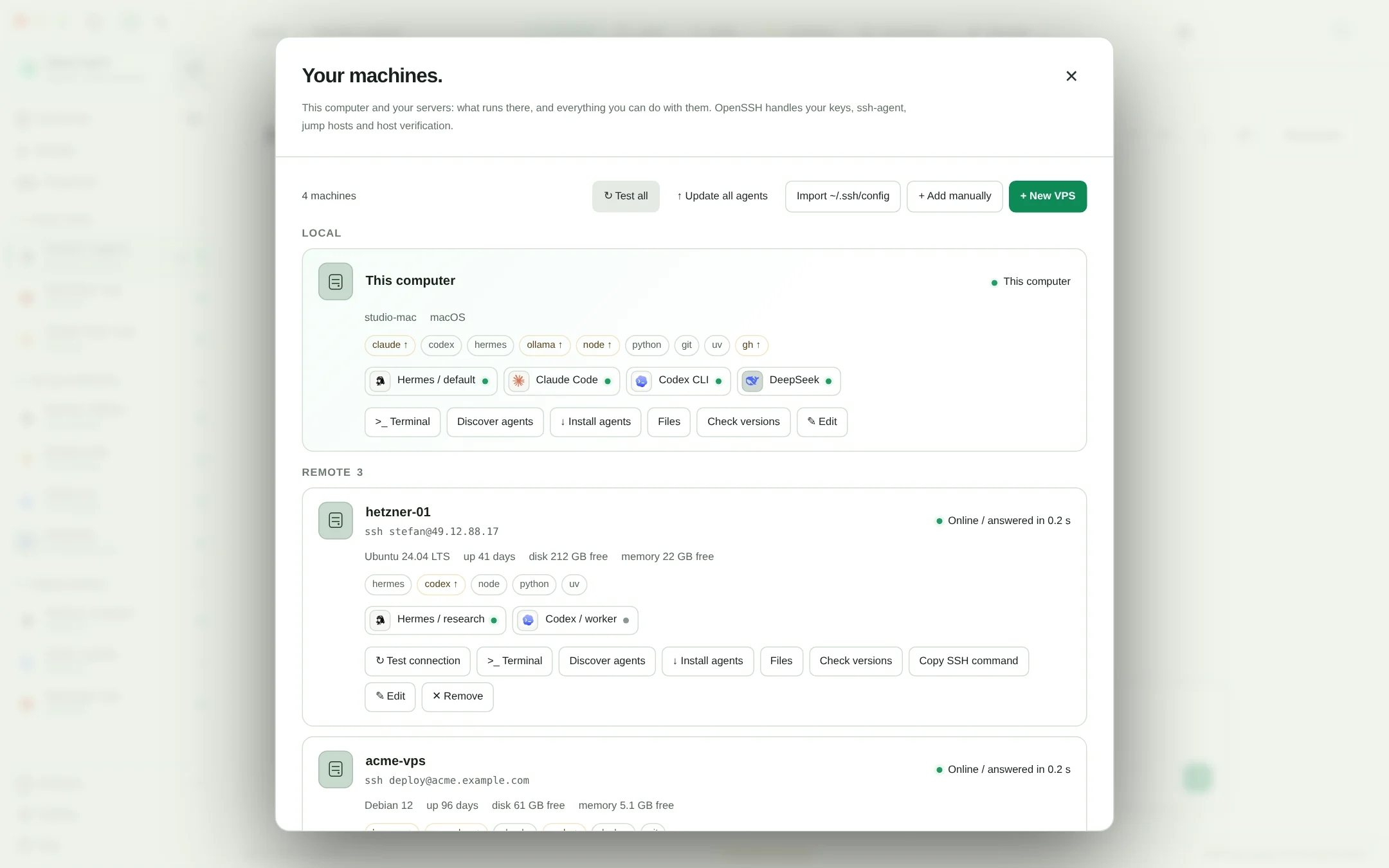
Type "yes" to accept the fingerprint. This step prevents automated connections from hanging due to unverified host prompts.ssh username@your_vps_ip - Add the Machine to OPAYA: Open your OPAYA desktop application. Navigate to the Machines section and click the option to add a remote machine. Enter your VPS IP address, the SSH username, and the local path to your private key. OPAYA securely utilizes this configuration to orchestrate your remote operations.
Step 2: Agent Installation and Remote Discovery
With your laptop and VPS securely connected within the OPAYA workspace, you can now seamlessly install and discover AI agents across both environments without jumping between different terminal tabs.
Installing Agents: OPAYA standardizes the installation process regardless of where the agent lives. When you want to deploy a new agent, you simply select the target machine in the OPAYA interface. For local deployments, OPAYA utilizes your laptop's installed runtimes. For remote deployments, it pushes the necessary configurations over SSH and orchestrates the setup on the VPS. This completely abstracts away the tedious process of manually cloning repositories, creating virtual environments, and running dependency installers on remote servers.
Agent Discovery: If you already have existing agents running on your VPS (such as Docker containers or background services), OPAYA is designed to discover them. OPAYA scans the target machine's active processes and Docker daemon to identify running agent workloads. Once discovered, they populate in your unified dashboard, allowing you to instantly view logs, monitor states, and track resource consumption alongside your local deployments.
Step 3: Secure Secrets Management with OPAYA Vault
AI agents require API keys to function—OpenAI, Anthropic, or vector database credentials are common dependencies. Hardcoding these keys in your source code or passing them as plaintext environment variables across SSH is a massive security risk, especially when syncing work between a laptop and a VPS.
To solve this, you must implement a centralized secrets management approach:
- Initialize the OPAYA Vault: Within the OPAYA workspace, navigate to the secrets configuration area. Add your sensitive API keys here. The workspace handles these keys locally.
- Local Environment Variable Injection: When OPAYA starts an agent on your laptop, it securely injects these secrets into the local process environment at runtime.
- Remote Secret Provisioning: When starting an agent on your VPS, OPAYA securely transmits the necessary secrets over the encrypted SSH tunnel just in time for the agent's initialization. The keys are never written to persistent disk storage on the VPS in plaintext; they remain in memory or secure temporary environments, drastically reducing your attack surface if the VPS is ever compromised.
Health Checks: Validating Your Laptop-to-VPS Bridge
Before leaving your agents to run unattended, you must verify that the local-remote bridge is stable and that agents are operating as expected. Use this test checklist to validate your setup.
- Check SSH Connectivity: Disconnect and reconnect your internet on your laptop. Verify that OPAYA successfully re-establishes the SSH session to the VPS without manual intervention.
- Verify Process Logs: Trigger a test task for your remote agent. Check the unified log viewer in OPAYA. Ensure that standard output (stdout) and standard error (stderr) are streaming back to your laptop seamlessly.
- Resource Monitoring: Start a computationally heavy agent task. Monitor the memory and CPU usage in OPAYA for the remote machine to ensure the VPS is not hitting its resource limits, which can cause silent crashes.
- Secrets Validation: Deliberately remove an API key from your workspace vault and attempt to start the agent. Verify that the agent gracefully fails with an authorization error, proving that it is correctly pulling from the vault and not relying on a hardcoded fallback file on the server.
- Docker Daemon Health: If utilizing containerized agents on the remote host, ensure the containers are marked as healthy and are not stuck in a continuous crash loop.
Troubleshooting Network Drops and Edge Cases
Running agents across a distributed architecture introduces specific edge cases that you must plan for. The most common operational issue is network instability between your laptop and the VPS.
If your laptop goes to sleep or loses its Wi-Fi connection, the active SSH control connection will drop. It is crucial to understand that you cannot assume all vendor agents support the same reconnect features. While some agent frameworks are built with robust internal retry logic and will continue executing tasks on the VPS even if the control plane disconnects, other third-party agents might pause or crash if their standard output stream is broken or if they rely on continuous polling from the client side.
To troubleshoot and mitigate these edge cases effectively:
- Use Detached Processes: Ensure that your remote agents are launched as detached processes or background services (like detached Docker containers). This ensures the agent workload survives if the SSH session terminates unexpectedly.
- Port Collisions: If you are rapidly restarting agents during a debugging session, network ports on the VPS may remain bound to zombie processes. If an agent fails to start with an "address already in use" error, use command line utilities on the VPS to identify and terminate the hung process blocking the port.
- Dependency Mismatches: Your laptop might run a newer version of Python or Node than your VPS. Always explicitly define your runtime versions in a configuration file or Dockerfile to prevent agents from failing remotely due to missing language features or syntax changes.
Frequently Asked Questions (FAQ)
Do I need to install OPAYA on my VPS to manage agents remotely?
No, you do not need to install the OPAYA workspace application on your remote server. OPAYA operates entirely from your local desktop machine and uses standard SSH protocols to connect, install, and manage agents on your VPS. This architecture keeps your remote servers clean and avoids unnecessary software overhead.
Can I run local LLMs on my laptop and connect them to agents on my VPS?
Yes. If you are running a local model on your laptop, you can expose that local port to your VPS through secure SSH tunneling (often called reverse port forwarding). However, be mindful of your local network's upload bandwidth, as sending large amounts of token data from your laptop to the remote VPS can introduce significant latency.
How does OPAYA handle unexpected VPS reboots?
If your VPS reboots, any agents running as simple foreground processes will terminate. To ensure persistence, you should configure your critical remote agents to run as Docker containers with automated restart policies or as systemd services. Once the VPS is back online, OPAYA will automatically discover the running processes upon its next successful connection.
Is my SSH private key safe within the OPAYA workspace?
Yes. OPAYA manages your SSH credentials locally on your machine. They are not uploaded to central cloud servers. It is strictly recommended to use SSH keys protected by passphrases and to utilize your operating system's native keychain for an added layer of robust security.
What happens if two agents require the same port on the VPS?
Port collisions will prevent the second agent from starting. You must either configure the agents to use different ports via their respective settings or use Docker to map internal container ports to distinct, available external ports on the VPS host.
Next Steps: Unify Your AI Agent Workspace
Bridging the gap between local prototyping and remote execution is a critical step in scaling your AI operations. By combining the rapid iteration of your laptop with the persistent power of a VPS, you create a robust environment capable of handling complex, long-running agent workloads. You no longer need to accept scattered workflows, compromised security practices, or disconnected logs.
If you are ready to streamline your deployment process and manage all your local and remote agents from a single, intuitive interface, it is time to upgrade your tooling. Explore OPAYA today to securely connect your environments, centralize your secrets, and bring order to your growing AI agent architecture.