 opaya
opayaManage Hermes and OpenClaw on a VPS
Your server stays your server. Bring its agents into the same workspace as the rest of your work.
Before you start
A VPS you are authorized to manage, a reachable SSH port, an SSH username and a working key. The SSH user needs the permissions required for the operations you approve.
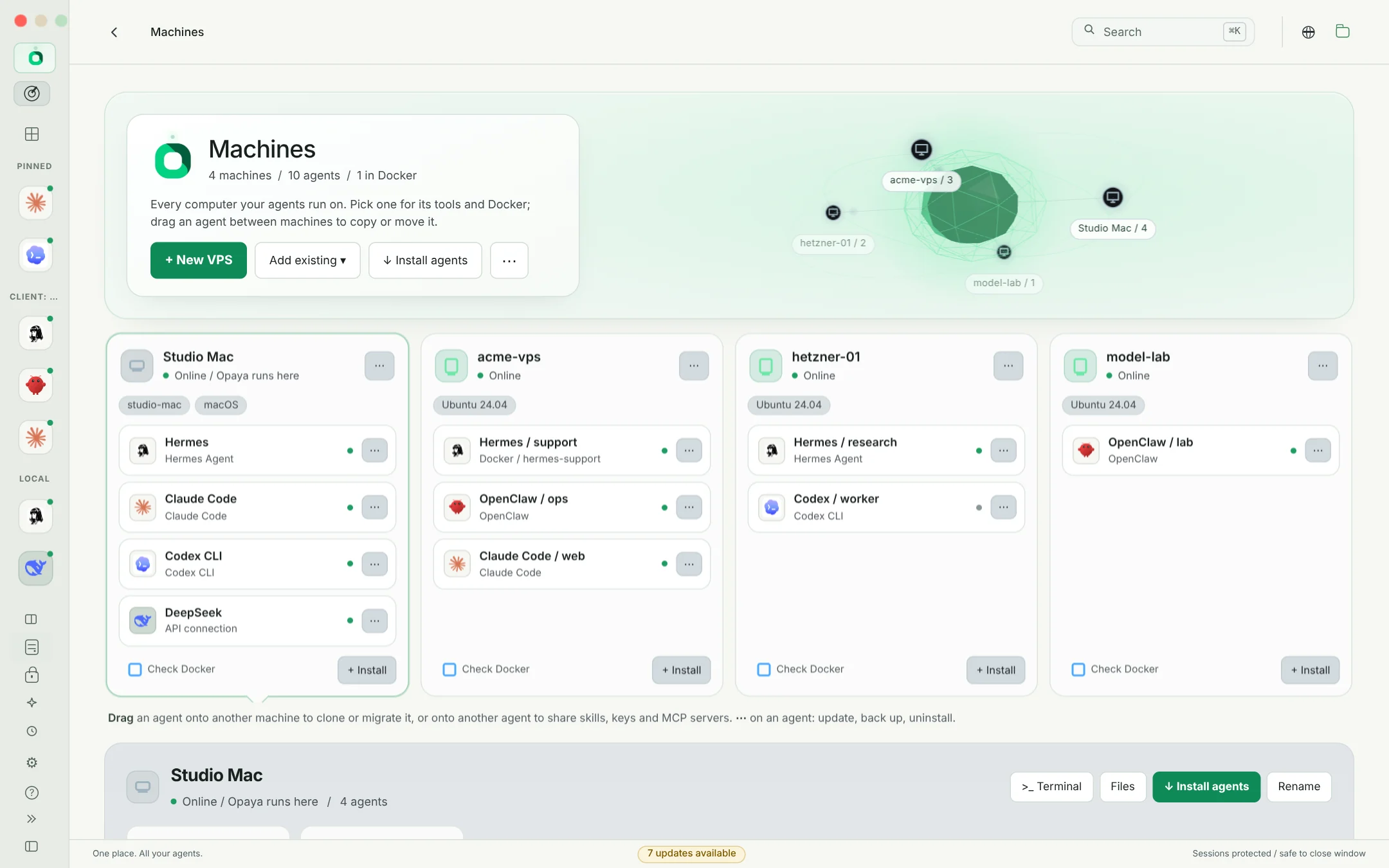
Connect the machine
Add the VPS connection with the correct hostname, port and SSH user. Verify the server identity through a trusted channel. If it is unreachable, check firewall rules and SSH access before continuing.
Discover the remote agents
Select the connected VPS, then discover an existing Hermes or OpenClaw installation. If you need a new install, confirm the remote machine as the destination rather than your desktop.
Check runtime and provider access
Open the selected agent's management view and inspect its status, provider setup and working directory. Containerized agents need access to their intended volumes and runtime configuration.
Maintain a recoverable setup
Before an update, back up the relevant configuration and data. Apply the update, reconnect and verify a small task. Keep a known-good recovery path for agents serving other people.
Before you continue
The web app is for remote agents, not your local computer. Do not expose an agent gateway or Docker API publicly just to connect a dashboard; use the intended authenticated connection path.
Read the security and data modelStart with the agents you already use.
Desktop for local and remote work. Web for your remote agents.