 opaya
opayaConnect your first AI agent
One agent. One successful connection. Start there, then bring the rest of your workspace with you.
Before you start
An OPAYA account with a verified email, plus an existing supported agent or permission to install one. Keep your model-provider login or API key available.
Choose where you will work
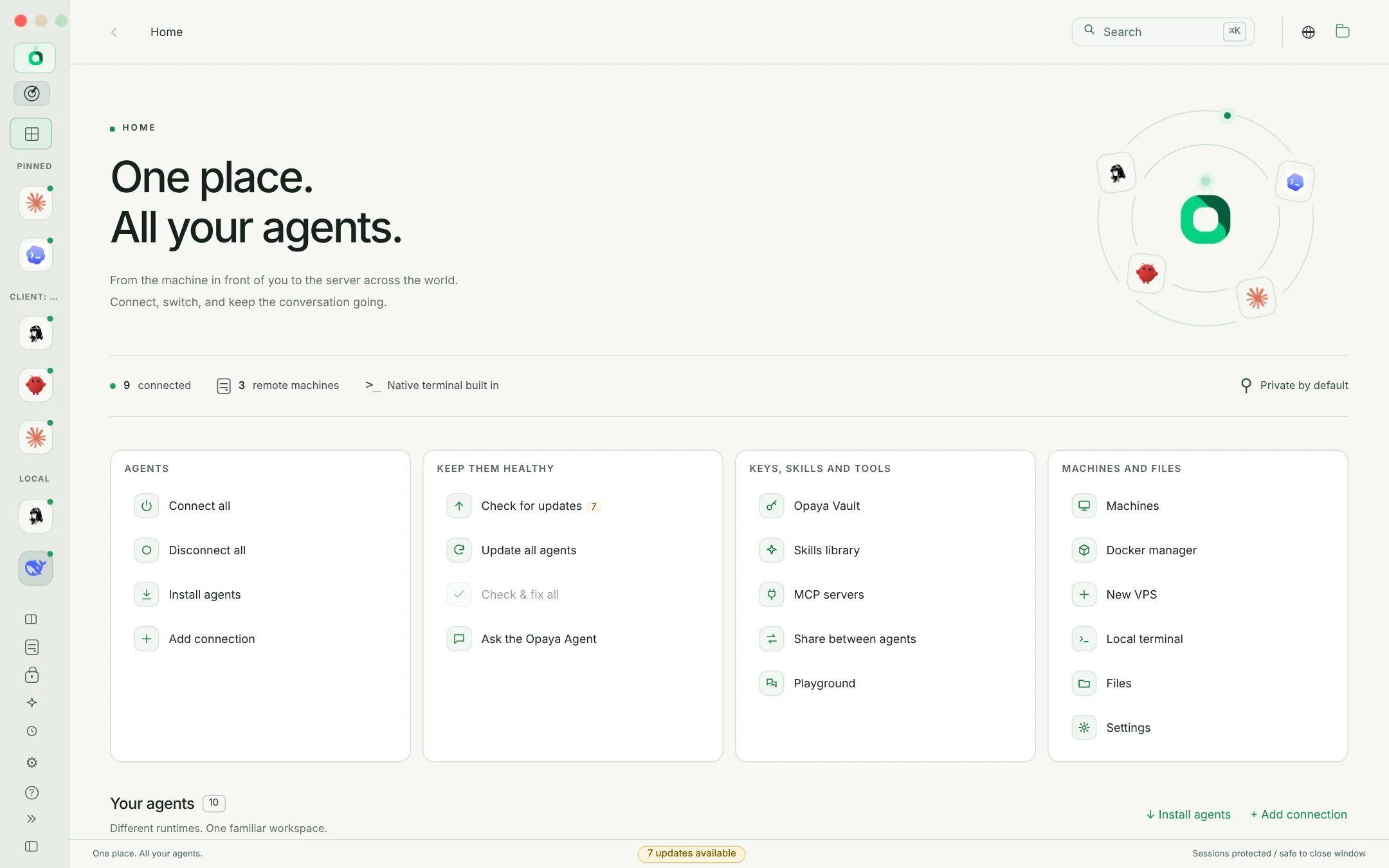
Use the desktop app for agents on your own computer and remote machines. Use the web app for remote agents; the browser cannot discover agents installed on your laptop.
Find or install one agent
In the desktop workspace, use Discover for an existing installation, or install a supported agent. For remote work, connect the server over SSH first, then discover or install the agent there.
Connect its provider
Complete the agent's supported sign-in or API-key setup. An OPAYA plan does not include a model subscription, tokens or VPS hosting. Do not paste keys into a chat or support message.
Check a small task
Connect the agent and ask for a harmless task in a test project. Confirm which machine and working directory it is using before allowing file edits or commands.
Before you continue
If the connection fails, check the selected machine, provider login and agent installation first. An unreachable VPS is a network or SSH problem to resolve before installing more agents.
Read the security and data modelStart with the agents you already use.
Desktop for local and remote work. Web for your remote agents.