 opaya
opayaHow to Back Up and Move an AI Agent to a New Machine
Move a working agent without leaving its useful context behind.
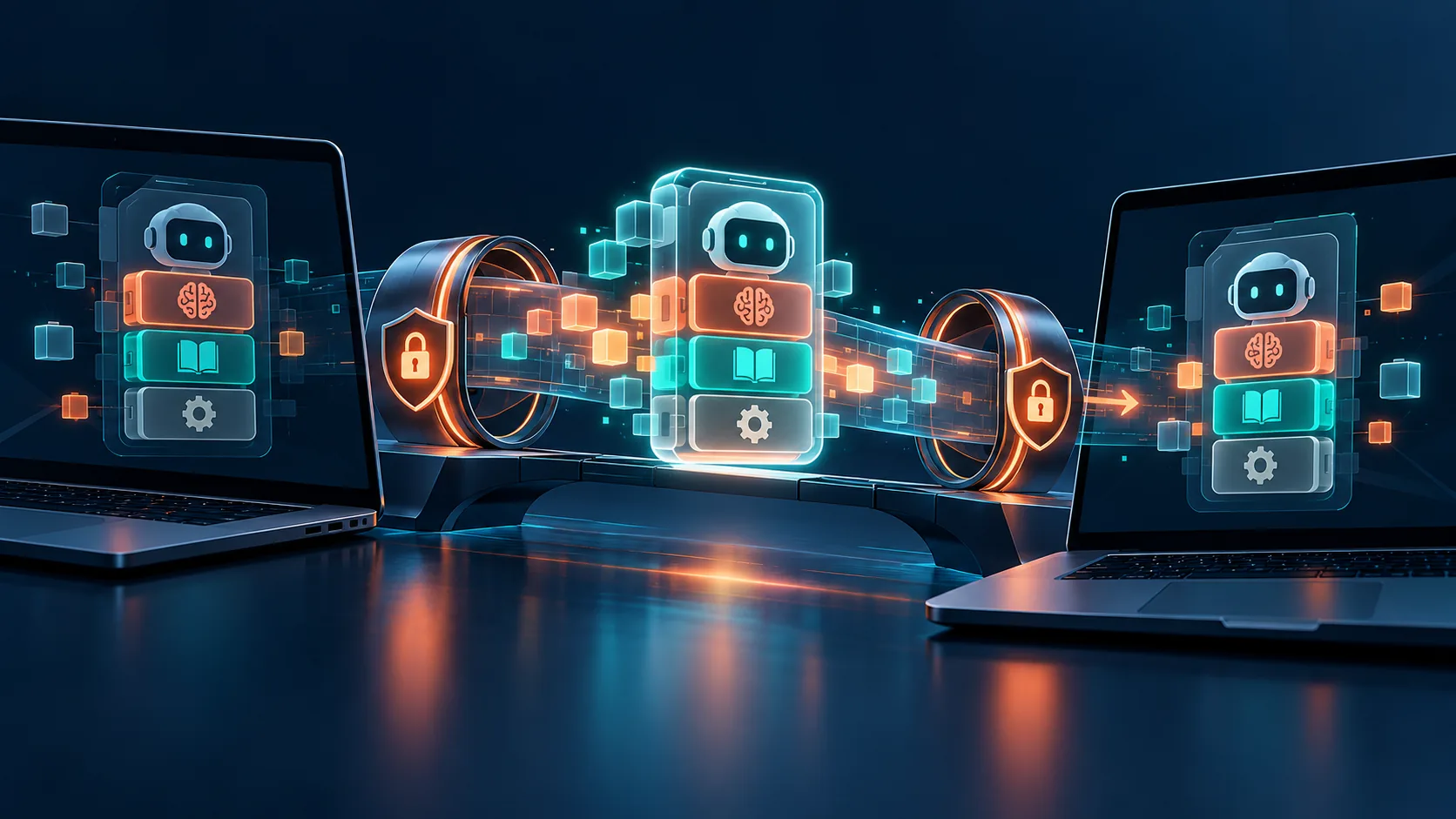
Move a working agent without leaving its useful context behind. Whether you are upgrading your local hardware, migrating a heavy processing workload to a remote server, or containerizing an existing workflow into Docker, knowing how to securely back up an AI agent is a critical skill for modern developers and operators. Unlike traditional stateless web applications, autonomous AI agents accumulate valuable state over time. They store memories of past interactions, refine their internal system instructions, configure complex external toolchains, and adapt to the nuances of their specific environments.
When you move an agent across environments, you want to preserve this rich operational context without inadvertently transferring broken file paths, duplicate scheduled tasks, or exposed API credentials. Developers operating fleets of agents quickly realize that standard copy-paste operations fall short. An agent's "brain" might consist of a SQLite database for short-term conversation history, a local vector store (like ChromaDB or Milvus) for long-term memory retrieval, and a YAML configuration file that dictates which large language model (LLM) it is authorized to invoke.
If you fail to back up AI agent components comprehensively, the migrated instance will wake up on the new machine with "amnesia," requiring a time-consuming retraining or re-configuration process. Conversely, if you copy everything blindly, you risk breaking your new environment with incompatible absolute paths or triggering automated actions twice. This guide provides a step-by-step methodology to inventory your agent's state, safely export its settings, and redeploy it reliably across local machines, remote servers, or Docker containers.
Understanding AI Agent Migrations: Backup vs. Clone vs. Redeploy
Before initiating any transfer, operators must distinguish between a backup, a clone, and a redeployment. Misunderstanding these core concepts often leads to architectural headaches, such as two identical agents attempting to answer the same email or modify the same database simultaneously.
- Backup: A backup is an immutable, point-in-time snapshot of an agent's configuration, memory, and environment state. You back up AI agent architectures primarily to safely roll back in case of catastrophic failure, bad instruction updates, or data corruption. Backups are typically compressed and stored securely, entirely offline from active execution environments.
- Clone: Cloning creates an exact duplicate of a live agent meant to run simultaneously. You might clone an agent to scale out a workload (e.g., handling customer support tickets across multiple regions) or to create a staging environment for testing new instructions. Cloning requires careful intervention to strip out scheduled tasks and webhook listeners that should only trigger once.
- Redeploy (or Transfer): A redeployment involves moving an agent from one environment to another (e.g., from a local Mac desktop to a remote Linux server running Docker) with the intention of deprecating the original. This process relies heavily on taking a fresh backup and restoring it in a new execution context while maintaining seamless operation.
Prerequisites for Backing Up Your AI Agent Workloads
Successful agent migration starts long before the files are copied. Before touching your production machine or stopping any processes, ensure you have established a clear inventory and standardized your agent’s dependencies.
- Inventory Settings, Skills, and Memory: Catalog every component your agent relies upon. What foundational LLMs does it call? Which external tools or plugins (like web search APIs, shell execution access, or GitHub integrations) are currently enabled? Does the agent utilize a persistent memory framework, and if so, where are the vector files or relational databases stored on the local disk? Documenting these elements ensures nothing is left behind.
- Establish a Unified Directory: Ensure that the agent's core code, environment variable templates (like
.env.example), and local state are contained within a definable directory structure. If the agent stores logs in a system-wide root folder and memory in a hidden user directory, the backup process becomes highly fragmented and error-prone. - Prepare the Destination Machine: The new hardware or virtual machine must have the underlying dependencies installed. If the destination is a Docker host, ensure the Docker daemon is active, updated, and compatible with the agent's container requirements. If you are migrating to a remote server, verify SSH access, network firewalls, and sufficient disk space for the vector memory expansion.
Step-by-Step Guide to Migrating an AI Agent
The following sequence outlines how to safely extract your agent's context from the source machine and restore it onto the destination machine, minimizing downtime and data loss.
Step 1: Audit and Isolate the Agent State
Begin by shutting down the active agent gracefully. Forcing a hard kill can result in partial writes to memory databases or corrupted logging files. Once the process is stopped, run your inventory list to identify the exact files that constitute the agent’s memory and instruction sets. Modern agent frameworks usually divide their state into configurations (JSON or YAML files), memory stores (ChromaDB, Milvus, SQLite), and custom skill scripts (Python, Node.js, or Bash scripts).
Step 2: Choose What Transfers and Exclude the Rest
It is crucial to be intentional about what makes the trip to the new machine. You should always transfer system prompts, custom instructions, memory vectors, and skill definitions. However, you should strictly exclude massive, redundant log files, temporary caches, or local LLM weights (which can easily exceed 40GB). Copying heavy weights over the network is inefficient; it is better to point the new agent to weights already present on the destination machine or download them fresh.
Step 3: Secure Credentials and Environment Variables
Keep your credentials opt-in. Never bundle active API keys, database passwords, or private access tokens into the core backup archive. Instead, export a clean environment template (e.g., .env.template) that lists the required keys without containing their actual values. The live secrets should be manually injected or securely fetched via a secret manager on the new machine. This practice prevents accidental exposure if the backup archive is stored in a less secure intermediate location like a shared cloud drive.
Step 4: Handle Scheduled Tasks to Avoid Duplication
Agents are frequently tasked with automated schedules, such as polling an inbox every ten minutes or scraping a financial website at midnight. If you are backing up an agent to clone it—or if the original machine will remain online temporarily during a redeployment—you must actively disable scheduled triggers in the exported configuration. Failing to manage cron jobs or scheduled loops will result in duplicate tasks running across multiple machines, potentially causing API rate limit bans, duplicated database entries, or conflicting outbound actions. Configure the backup process to strip out the active scheduler state.
Step 5: Execute the Backup Archive
With the state identified and sanitized of secrets and active triggers, execute the backup. For local file-system agents, this often means utilizing standard archiving tools like tar or zip on the designated folders. Ensure the archive maintains internal folder structures.
If the agent runs in Docker, you will need to export the specific Docker data volumes that hold the persistent memory and configuration files. Save the resulting archive to a secure, verified location before attempting the transfer.
Step 6: Transfer and Restore on the Destination
Move the archive securely to the new machine using tools like secure copy (SCP), rsync, or an encrypted internal storage bucket. Once transferred, extract the agent files into the desired directory. Ensure that file ownership and system permissions are set correctly on the new machine so the runtime environment can read the configurations and write to the memory databases. Inject the credentials based on your opt-in template, map the paths correctly, and initialize the agent.
Troubleshooting Edge Cases in Agent Migration
Even the most meticulous transfer can run into environmental snags. Operators should be prepared to handle the following edge cases:
- Path Mismatches: An agent trained to read documents from an absolute Windows path will fail immediately if moved to a remote Linux server using a different file system structure. Ensure your agent configurations use relative paths or environment variables for all file system interactions prior to the backup.
- Hardware Accelerators: Moving from a local machine with a dedicated Nvidia GPU to a cloud server that relies solely on CPU inference requires reconfiguring the local LLM providers (such as Ollama or Llama.cpp settings) to avoid initialization crashes due to missing CUDA drivers.
- Network Firewalls: The destination machine might reside behind a stricter corporate firewall. If your agent relies on web-browsing skills, scrapes external sites, or queries third-party APIs, verify that outbound traffic on those specific ports is permitted on the destination server.
Post-Migration Testing and Verification Checklist
After the agent has been started on the new machine, do not assume the migration is successful just because the process is running. Run through this rigorous verification checklist to confirm operational integrity:
- Connectivity Check: Ping the agent's local API or interact with its chat interface. Verify it responds in a timely manner and loads the correct default system prompt.
- Memory Retrieval Test: Ask the agent a question that relies entirely on its past interactions or custom loaded documents. If it hallucinates or claims ignorance, the vector database transfer likely failed or the file paths are misconfigured.
- Skill Execution: Instruct the agent to use one of its specific tools (e.g., checking the weather via API, fetching a stock price, or reading a local test file). Verify that the tool executes without permission errors or missing dependencies.
- Credentials Validation: Monitor the agent's logs during the first few tool calls to ensure no "Authentication Failed" errors occur due to miscopied environment variables or missing keys.
- Test Rollback: Confirm that you can easily revert to the original machine if the destination machine proves unstable. Keep the original agent completely intact (but paused or disconnected from the network) for at least 48 to 72 hours post-migration.
Streamlining AI Agent Mobility with OPAYA
Managing raw configurations, isolating vector memories, and ensuring secure transfers manually can become a heavy administrative burden for operators running multiple specialized agents. This is where a dedicated agent workspace becomes invaluable. For users managing their workflows with OPAYA, moving agents is significantly simplified through native workspace tools.
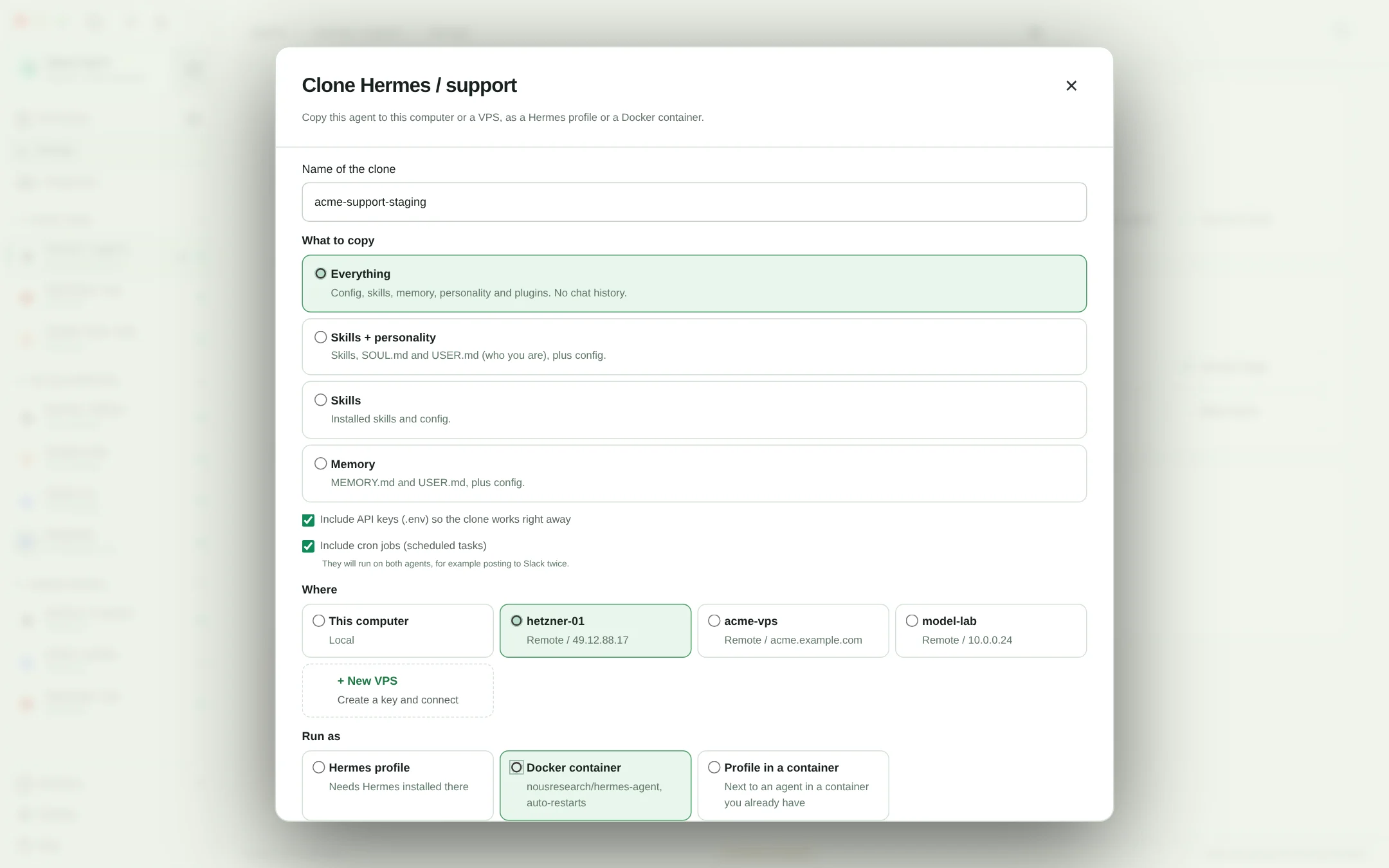
As a desktop workspace designed specifically for installing, connecting, and managing AI agents, OPAYA abstracts away the complexity of manual file-system backups. According to the OPAYA platform capabilities, operators can utilize seamless cloning and transfer functions directly from the interface.
When you use the clone feature in OPAYA, the workspace intelligently duplicates the underlying settings, custom skills, and instructions while automatically preventing the direct copy of active schedules, thereby mitigating the risk of duplicate task execution. Furthermore, OPAYA's transfer capabilities allow operators to migrate an agent from a local machine setup directly to a remote server or a containerized Docker environment with minimal friction. The platform automatically handles the serialization of the agent's context and ensures that environment paths are mapped correctly to the new destination's operating system. Instead of manually editing configuration files, debugging vector database mismatches, and worrying about permission scopes, operators can rely on OPAYA to maintain the integrity of the agent's operational memory during the move.
Frequently Asked Questions (FAQs) About AI Agent Migration
Will backing up an AI agent also back up its locally downloaded LLM weights?
Generally, no. LLM weights (like those managed by Ollama or LM Studio) are massive files and are typically stored in a separate, system-wide directory. You should redownload or point the agent to the existing weights on the new machine rather than copying gigabytes of static models across your network.
How do I ensure my agent's vector memory isn't corrupted during transfer?
Always stop the agent process entirely before attempting to back up AI agent memory databases. Copying a SQLite or ChromaDB file while it is actively being written to will almost always result in a corrupted, unreadable backup archive.
Can I transfer an agent between two completely different operating systems?
Yes, provided the agent runs on a cross-platform runtime (like Python, Node.js, or within Docker). However, you must carefully update any absolute file paths in the agent's configuration, as Windows, macOS, and Linux use fundamentally different path structures.
Why is my transferred agent executing tasks twice?
If the original agent machine was left running and connected to the internet, both the old and new agents are likely firing their scheduled tasks simultaneously. Ensure the original agent is fully paused or has its scheduling triggers explicitly disabled.
How do I handle API rate limits after cloning an agent?
If you clone an agent to run parallel tasks, both clones will use the same API keys unless reconfigured. This can easily trigger rate limits from external LLM providers or search APIs. Consider provisioning separate API keys for each active clone.
Next Steps for Successful AI Agent Operations
Successfully moving an agent requires a systematic approach to state management, security, and environment configuration. By carefully inventorying your setup, handling scheduled tasks appropriately, and following a strict testing checklist, you can confidently migrate your intelligent workflows without sacrificing the customized context they have built over time.
Your immediate next action is to document the exact location of your agent's memory stores and credential files on your current primary machine. Create a dry-run backup archive today, ensuring you know precisely how to extract and isolate the agent's critical data before a hardware failure or urgent migration forces your hand.
If you want to eliminate the manual overhead of copying configurations, managing vector stores, and debugging path issues across different machines, consider managing your AI agents with OPAYA. OPAYA offers a unified desktop workspace to effortlessly install, clone, and transfer agents across local environments, remote servers, and Docker. Explore how OPAYA can simplify your agent operations today.